


Canon Camera Connect
4.56.90K Reviews
App Specs
- Version
- Varies with Device
- Updated On
- License
- Free
- Downloads
- 50,000,000+
- Developer
- Canon Inc.
- Categories
- Photography
- Platform
- Android, iOS
Screenshots
 Analysis by AppCompare
When I’m away from my computer, the useful part of a camera companion app is not simply that it can move pictures; it’s whether the connection fits the moment. Canon Camera Connect is a free photography app from Canon Inc. for working with images from a Canon camera over Wi-Fi. It makes the most sense when I want to check a shot, move a few images to a phone, or use the phone as a convenient way to trigger the camera, rather than build an entire editing workflow around a mobile screen.
When the connection becomes part of the shoot
A phone link is most valuable when it solves a small, immediate problem. I might want to check a composition without walking back to a tripod, or get a picture onto my phone while I’m still out. Those moments depend on the camera and phone establishing a connection, so this is not quite the same as browsing a folder already stored on the handset. I treat the link as a practical bridge between the camera and my next step, not as a replacement for planning the shoot.
That distinction matters if I’m working somewhere crowded or moving quickly. Connecting and choosing images takes attention, and the convenience is less impressive when I only need to take pictures and keep walking. I’d make the transfer when there’s a natural pause—after a scene, on a break, or before leaving a location—rather than interrupting every few minutes to check the phone. The app’s best use is often selective: bring over the frames I’m likely to share or review, then leave the rest on the camera until I’m back at a larger screen.
A phone is a different kind of camera companion
For a group picture, a phone connection can change the practical setup. I can place the camera, step into the frame and use the mobile device to check the view and trigger a shot, instead of setting a timer and hoping everyone is ready. The same approach can help with a still subject when I want to avoid touching a camera on a tripod. It is a useful option, though I would still check the framing and focus before relying on it; a phone screen is a monitor, not a guarantee that the final picture will match my expectations.
The app is also a better fit for people who already shoot with a compatible Canon camera than for someone looking for a general-purpose photo organizer. Its purpose is tied to that camera connection, while a phone’s built-in gallery is simpler for photos already on the phone. A card reader or computer can be the more direct choice when I want to move a large batch, organize files carefully, or keep a desktop workflow. For a handful of selected shots on the go, the phone link is the more appealing route.
Small habits that make transfers easier
I’d decide what I need the images for before selecting a transfer size. A smaller copy can be convenient when I mainly want to share or check a photo on a phone; an original-quality transfer is the sensible choice when I want to preserve the full image for later use. That choice is a trade-off between speed and file size, not a reason to assume every mobile copy should replace the camera original. Keeping the camera card as the main copy until I have checked the transfer is a reassuring habit.
For a travel day, I’d use the app in short sessions: connect when I have a stable moment, pick a few images, and confirm they appear on the phone before moving on. If I’m collecting location information, I’d think about whether I want that attached to the pictures before using GPS syncing. Location can make a trip easier to retrace, but it can also reveal where a photo was taken if I share it publicly. That makes the feature useful with a little forethought, rather than something I’d switch on automatically for every situation.
Worth Reading Before You Choose

EA SPORTS FC Mobile 26 Is a Bigger Football Game, but It Takes Time

Flipboard Shows What News Apps Must Do Beyond the Feed

Switching to Android Auto Means Rethinking Your Driving Routine

Google Calendar Makes a Crowded Week Easier to Manage

Ludo King Makes the Most of the Minutes Between Plans

Baby Panda World Brings Quick Play to Modern Phones, but Its Game Library Feels Busy
What to expect when a link falters
Wireless handoffs can be the fussiest part of a camera-to-phone workflow. If a transfer or remote session does not start as expected, I would first check that the camera’s wireless connection is active and that the phone is connected to the camera rather than assuming the image itself is the problem. Then I’d pause, reconnect, and try a single image or a basic remote action before continuing. This keeps troubleshooting small and helps distinguish a temporary connection hiccup from a selection or workflow mistake.
I would not make the app my only plan for an important deadline. If I need a dependable batch transfer or a careful backup, I’d wait until I can use a card reader or computer and verify the files there. The mobile connection is handy for quick access, but relying on any wireless step while rushing can add friction at exactly the wrong time. A modest routine—transfer, check the phone copy, and keep the camera originals until the job is safely finished—makes the convenience more dependable.
Who will get the most from it
This is most appealing to Canon camera owners who often want a remote shutter, a quick way to select and move pictures, or a path from camera to mobile editing and sharing. It is particularly useful on family outings, trips, and casual portraits where carrying a laptop would be excessive. Someone who mainly takes pictures on a phone, uses another camera brand, or prefers to import everything in one organized desktop session may find little reason to add this step.
Its scale is reflected in its reach: it has an average rating of 4.5 from around 335,000 ratings and has been installed over 50 million times. It is rated for Everyone, which suits a photography utility intended for a broad audience. Those figures suggest many people find a role for it, but they do not remove the practical question that matters most: whether your particular camera and the way you shoot make wireless access worthwhile.
Before planning a workflow around it, I’d check the camera’s own connection options and try a simple pairing at home. That first test is more useful than discovering how the controls feel while a group is waiting or the light is fading. Once connected, I’d test both a transfer and the remote view if those are features I expect to use. That small rehearsal can show whether the app suits my camera and help me avoid treating an unfamiliar connection as a last-minute solution.
Connecting Your World
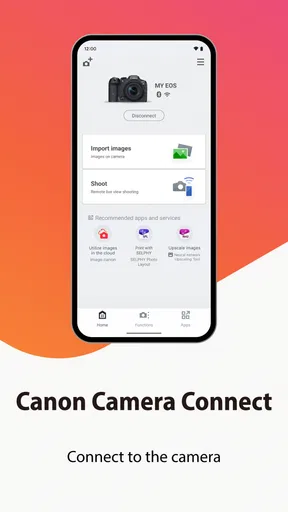
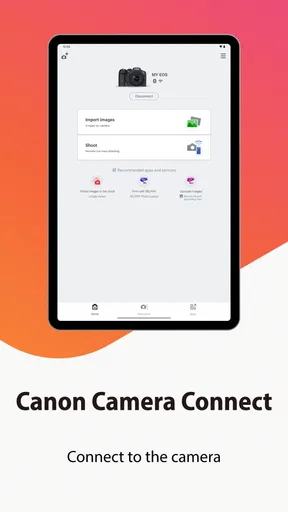
Starting off, the setup process with Canon Camera Connect is a breeze. Once you install the app, just turn on the Wi-Fi or Bluetooth on your camera, and you're good to go! The app supports a wide range of Canon cameras, so compatibility is hardly ever an issue. I’ve personally tried it with my Canon EOS Rebel and it was smooth sailing from the get-go.
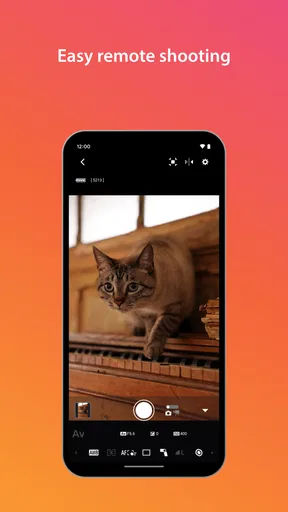
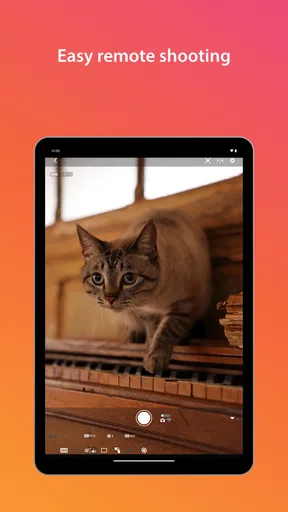
What’s super convenient is the ability to remotely control your camera. Imagine setting up your camera on a tripod and being able to adjust settings or even fire the shutter from your phone. It’s great for those times when you want to be in the group photo but have no one around to capture it. Plus, the live view on your device makes framing shots a piece of cake.
Sharing Made Simple
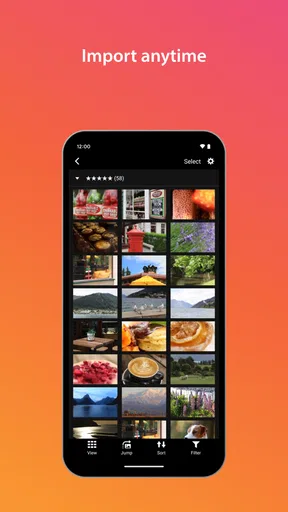
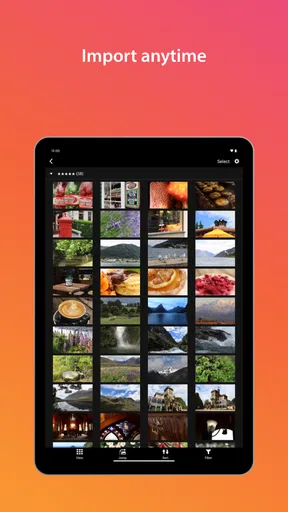
One of my favorite features of the app is the ease with which you can transfer images. No more fiddling around with cables or card readers. Just select the photos you want to share and they’ll be on your smartphone or tablet in no time. This is perfect for those who love updating their social media on the fly. You can also choose between transferring in original quality or a smaller size for quicker uploads.
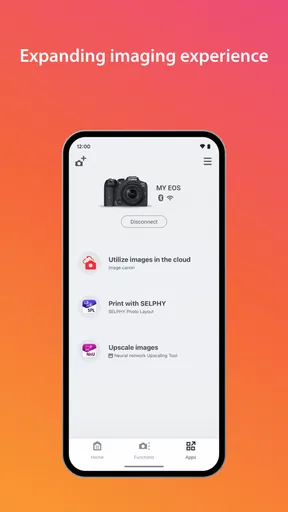
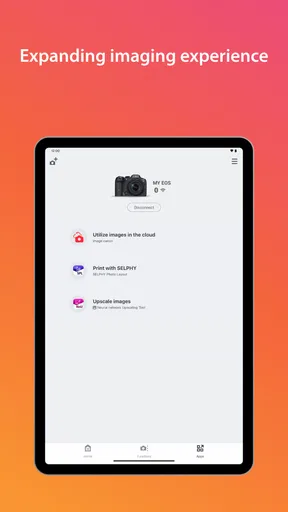
Plus, if you’re someone who loves adding a personal touch before sharing, the app syncs beautifully with editing apps. You can quickly enhance your images on your phone and get them out there looking their best.
Extra Features to Explore
Aside from the basic functions, Canon Camera Connect has a few more tricks up its sleeve. There’s a GPS syncing feature that can tag your images with location data. It’s perfect for travel photographers wanting to keep track of where each picture was snapped.
Also, if you’re like me and sometimes forget the settings you used for a particular shot, the app logs all that info. It’s a handy way to learn and improve your photography skills by reviewing what worked and what didn’t.
Final Thoughts
In a world where speed and convenience are king, Canon Camera Connect really hits the mark. It’s an essential tool for Canon users who want to streamline their workflow and elevate their photography game. Whether you’re a pro or just someone who loves snapping pics, this app opens up a world of possibilities.
So, if you haven’t yet given it a whirl, I’d say it’s high time you did. Trust me, once you start using it, you’ll wonder how you ever managed without it. Happy shooting!
Pros
- Easy to connect via Wi-Fi or Bluetooth.
- User-friendly interface for all skill levels.
- Compatible with a wide range of Canon models.
- Allows remote shooting with live view.
- Quick image transfer to smartphones.
Cons
- Limited editing features within the app.
- Some connectivity issues with older models.
- Battery drain on prolonged use.
- Requires frequent app updates.
- No support for non-Canon cameras.
FAQs for Canon Camera Connect
What is Canon Camera Connect and how does it work?
Canon Camera Connect is a mobile application designed to enhance the functionality of Canon cameras by allowing users to connect their cameras to their smartphones through Wi-Fi. Once connected, users can remotely control their camera, transfer images and videos, and use their phone as a viewfinder. It's compatible with most modern Canon models, facilitating seamless sharing and better control over photography.
Is Canon Camera Connect compatible with all Canon cameras?
Not all Canon cameras are compatible with the Canon Camera Connect app. It primarily supports newer models equipped with built-in Wi-Fi capabilities. Users should check their camera’s specifications or Canon’s official website to confirm compatibility. Older models without Wi-Fi capability may not work with the app, limiting its use to more recent releases.
What are the main features of Canon Camera Connect?
Canon Camera Connect offers several key features, including remote shooting, which allows users to control their camera from a distance using their smartphone. The app also supports image and video transfer, making it easy to share media on social networks. Additionally, it enables users to geotag their photos and offers a live view mode for better composition and focus.
Are there any costs associated with using Canon Camera Connect?
Canon Camera Connect is a free application available for download on both Android and iOS platforms. Users do not need to pay any subscription fees to use the app's basic features. However, data charges may apply if users are transferring large files over a mobile network, so a Wi-Fi connection is recommended for file transfers.
How can I troubleshoot connection issues with Canon Camera Connect?
If you're experiencing connection issues, first ensure both your camera and smartphone have Wi-Fi enabled. Restart both devices and try reconnecting. Verify that your camera is compatible with the app and ensure the latest version of the app is installed. If problems persist, consult Canon’s support resources or check for firmware updates for your camera.


